Disintermediation/Offline Service - SOP
Tagging SOP-
Indirectly reported Disintermediation means that the customer is reaching out for poor service however we find that the issue is related to the offline service.
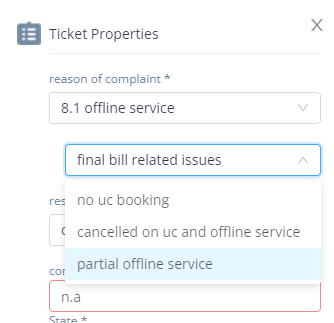
Note - Without proof of payment, we will not consider this as disintermediation. For example, if the customer has paid hard cash then we won't tag it under offline service.
Important steps for tagging under offline service
Ensure Pro ID is correct
Ask for phone number from customer, search profile in provider dashboard from here, match details with the information provided
Match details (name, phone number and service date) with the screenshot provided
Proof of payment has to be clearly captured
Name and/or phone number should be clearly visible
Link of the proof is to be pasted correctly (no tickets IDs or should not be left blank)
Payment has to be made to the same partner’s account and no one else
Current issues :
Pro id marked is wrong - Double check the pro ID, ask the customer for phone number and search in provider dashboard to get the right pro ID.
Proof id should be from the image clicked
We need to check if the phone number or the name of the provider is the same as provided in the proof - [Can check number by asking customer for the number and then searching in the ops dashboard from here ]
The image has to be clear enough to display the full name and/or the phone number of the partner
How to upload Proof of delivery while tagging.
1.Click on offline delivery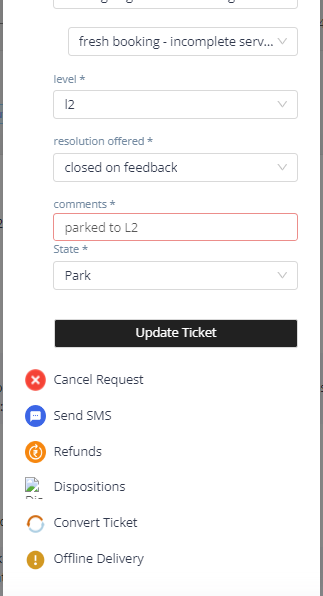
2. Enter the date of offline booking, provider ID of the pro who did offline service and whose name is matching on screenshot.
3. Click on Yes on were proofs submitted by customer and add link of the proof?
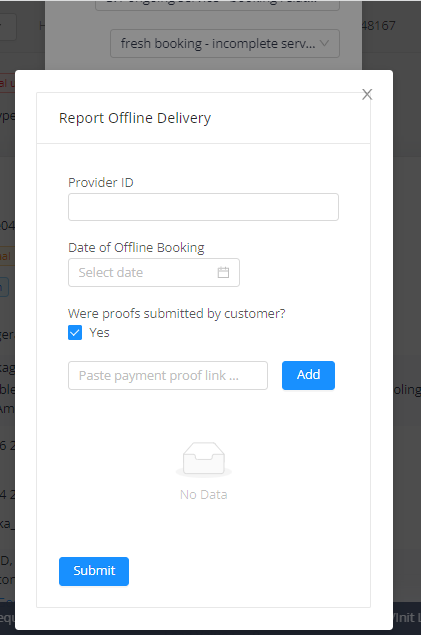
5. Right Click on image on chat and click on open in new tab.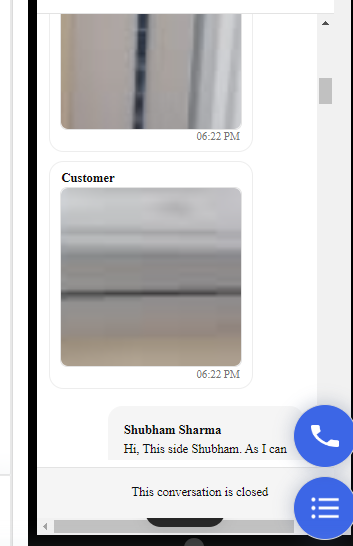
6. Copy link of the image as shown at the top, paste it, click on add and then click on submit.
Refund SOP-
- We will cater Customers coming to us through poor service flow for full offline bookings done by partners.
- Agents would just need to check manual proofs.
How to check if a request is genuine:
- Get partner_id from ops dashboard by asking customers about -
- Partner number
- Partner name
- Date of offline booking
If request is genuine – (For Full offline service)
- Check transaction amount
- If the transaction was made through cash and there is no proof, we cannot process refunds – apologize to the customer and mention that we will ensure this does not happen again.
- If transaction made on UPI apps, ask for screenshots and try matching -
- UPI ID with phone number - if matched, process refund
- If UPI doesn't matches with phone number then we will not tag it under offline service and wont cater
- Mention Pro Id in notes.
If request is genuine – (For Partial offline service)
- Check transaction amount
- If the transaction was made through cash and there is no proof, we cannot process refunds – apologize to the customer and mention that we will ensure this does not happen again.
- If transaction made on UPI apps, ask for screenshots and try matching -
- UPI ID with phone number - if matched , align partner to visit and create a revisit( only same pro) , else refund.
- If UPI doesn't matches with phone number then we will not tag it under offline service and wont cater
- Mention Pro Id in notes.
Refund details:
- All refunds processed as UC Credits
- Per customer per refund cap: Rs. 5000 /-( Refund amount need to be discussed with UC POCs)
- Offline booking should have happened in the last 30 days
If the refund request is not genuine, we cannot process refunds – apologize to the customer and mention that we will ensure this does not happen again